Tagging Files
Tags tell Cartara which files to process for documentation. Simply add a comment at the top of your code file with comma-separated attributes.
- id: A unique identifier (4-30 characters) for this document within your organization. Cartara uses this to track and update the correct documentation. If a document with this ID doesn't exist, it will be created.
- name: A human-readable title for the document.
- diagramType: The type of diagram to generate. Options: component, flowchart, or sequence. Defaults to none.
- context: Additional context to improve the generated documentation quality and accuracy.
- folderId: Assigns the document to a specific folder. If the folder doesn't exist, the document is placed at the root level.
- spaceId: Override the space ID from your CI/CD pipeline to place this document in a different space.
// @cartara id: HF4563S1, name: API Docs, diagramType: component

const main = () => {
  console.log("Hello from Cartara!")
}
Combining Multiple Files into One Document
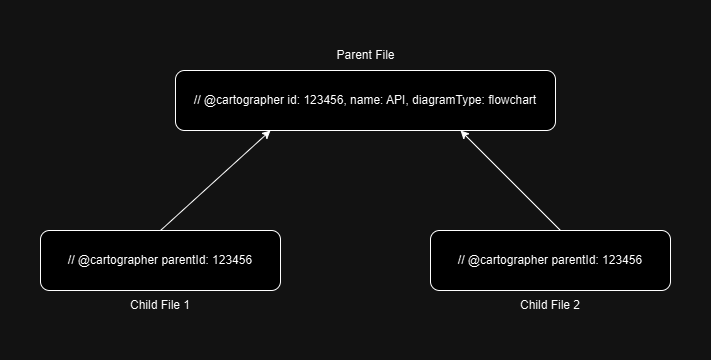
When your code spans multiple files, you can link them together to generate a single comprehensive document. In your primary (parent) file, add a standard tag with an id. In related files, reference the parent using parentId:
For example, if your parent file has id: 123456, add parentId: 123456 to any related files. Child tags don't need any other attributes.
Adding Context
Use the context attribute to guide the documentation generation. For example, to create internal API documentation:
With this context, Cartara will focus on API endpoints and tailor the documentation for your internal team, improving relevance and accuracy.